Everything the app can do, step by step. The same guide is in the app: tap the question mark at the top of the Library.
Getting started
The four tabs
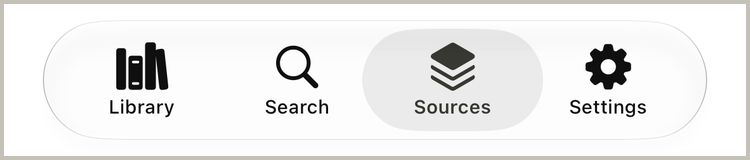
Everything in the app lives under one of the four tabs at the bottom of the screen.
Library is your bookshelf: everything you've saved, plus your collections.
Search is where you look for new stories.
Sources is where you choose which websites the app can read from.
Settings has your options and backups.
Where to start
The app doesn't come with any stories, so if you're new, Add a repository is the place to begin. If you already have EPUB files, you can import them straight into your Library instead.
Tip Help is always one tap away. Look for the question mark at the top of the Library.
Add sources
Add a repository
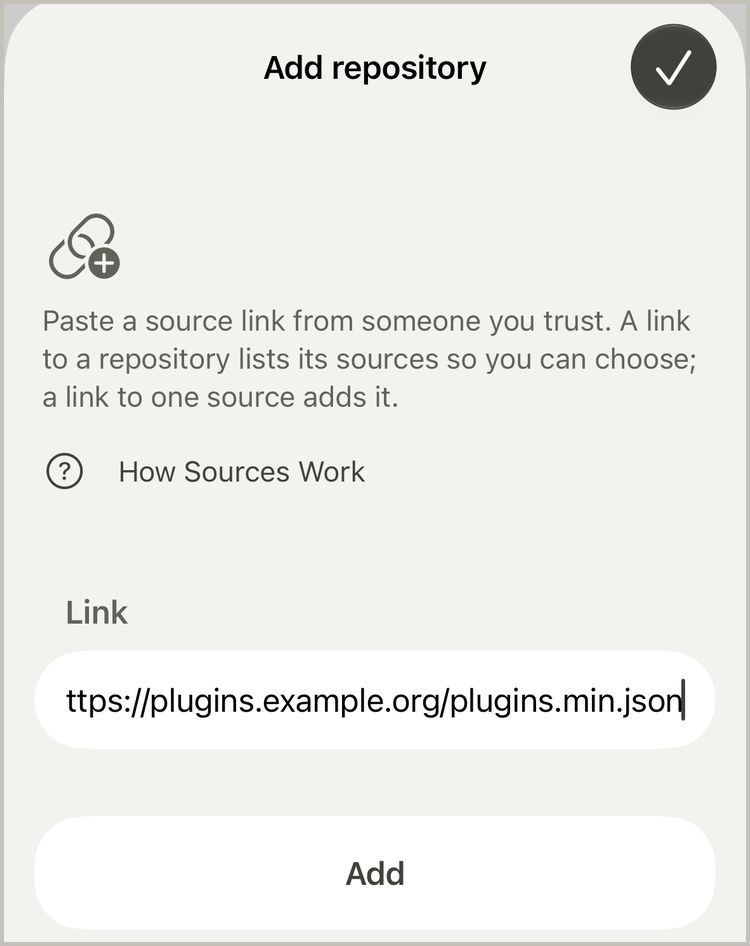
A source is a small plugin that lets the app read one website. The app doesn't come with any, so you'll add the ones you want. Usually someone shares a link to a whole list of them, called a repository.
Open the Sources tab.
Tap Add Repository.
Paste the repository link and tap Add.
Tap Add next to each source you'd like, then tap Done.
Tip Plugin repositories made for LNReader work here too. If you already use one, paste the same link.
Add just one source
Got a link to a single source instead? Tap Add Repository and paste it the same way. If the source is saved as a file on your device, tap Choose a File… instead.
Keep your sources up to date
Websites change their layout now and then, and when they do, a source can stop working until it gets a new version.
In the Sources tab, tap Check for Updates to update everything at once.
Or tap a single source and tap Check for Updates there.
Tip If an update makes things worse, open the source and tap Roll Back to the Previous Version.
Change or remove a source
Tap any source to see its website, version and language. Some sources have options, which you'll find under Settings. To get rid of one, tap Remove Source. Books you already saved from it stay in your Library.
Is it safe?
A source can only fetch web pages and turn them into chapters. It can't see your library, your files or anything else on your device. Still, only add links from people you trust.
Find and save books
Browse a source
Open the Search tab.
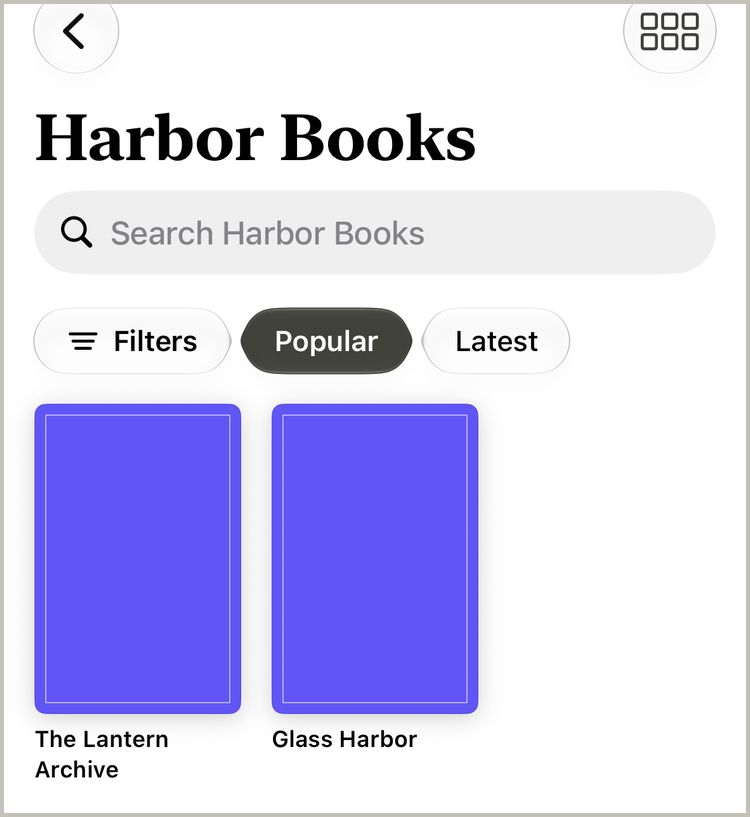
Tap a source to see what it has.
Switch between Popular and Latest to see what's trending or what's new.
Tap Filters if you want to narrow things down by genre and more.
Search all your sources at once
Know what you're looking for? Type a title or an author into the search field on the Search tab, and the app looks through every source you've added.
Save a book for later
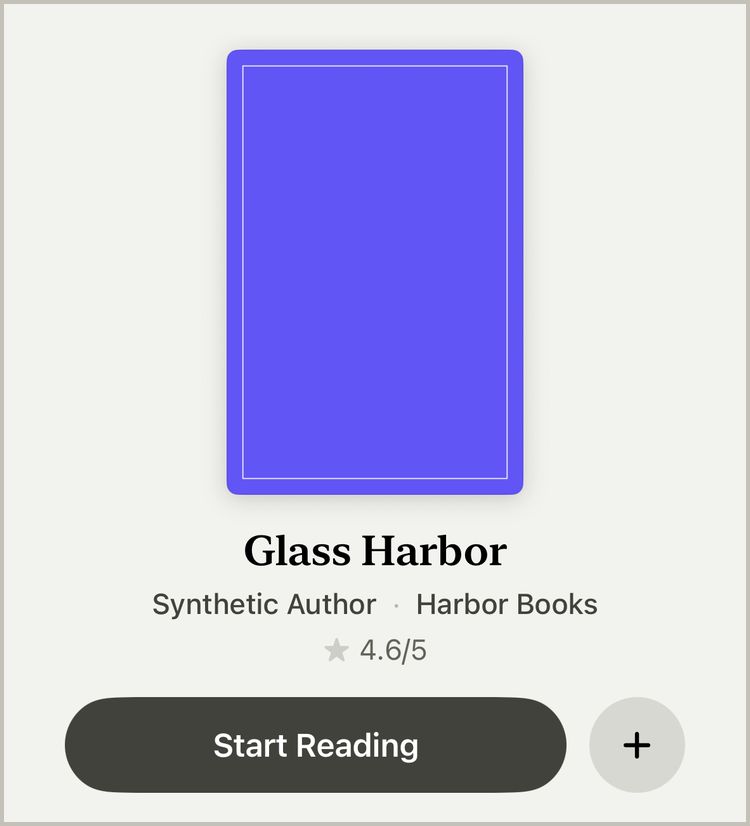
Tap any cover to open the book's page, where you'll find its summary and its chapters. Tap + to put it in your Library. You can also just tap Start Reading, since reading a book saves it too.
Tip Changed your mind? Tap ✓ to take it out again.
Your Library
Pick up where you left off
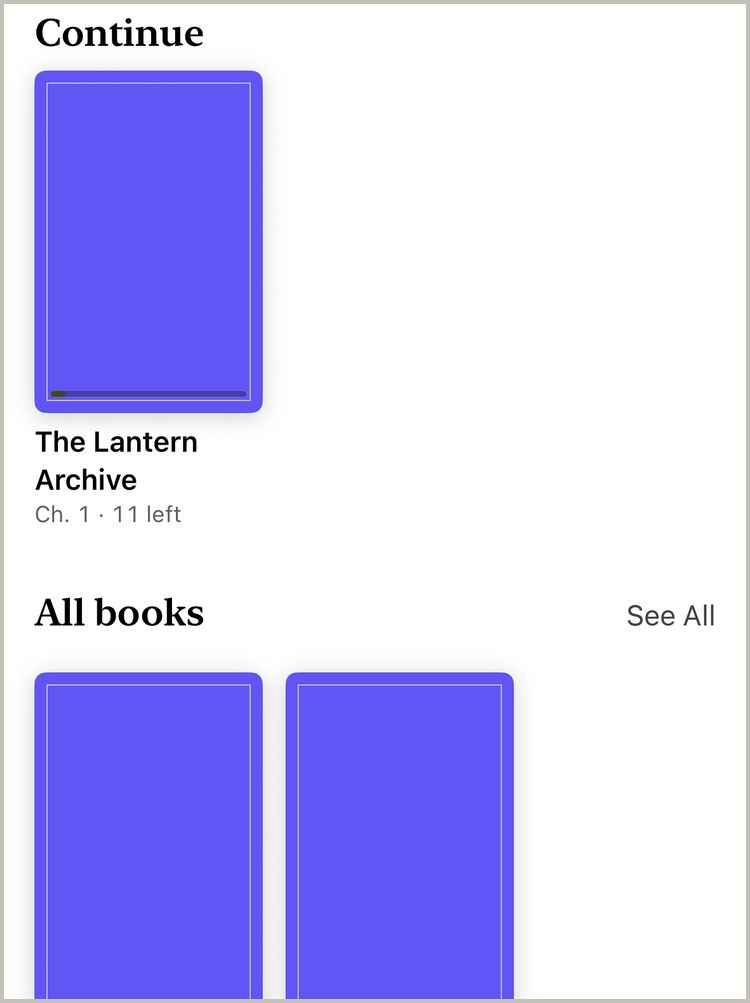
The books you're in the middle of sit in the Continue row. Tap a cover and the book opens right where you stopped.
Tip Touch and hold any cover to see more things you can do with it.
Make a collection
Collections let you sort your books your own way, like Favourites or Weekend reads. There are two kinds:
A regular collection holds the books you put in it yourself.
A smart collection fills itself using rules, like Genre is Fantasy or Author is Ren Ito.
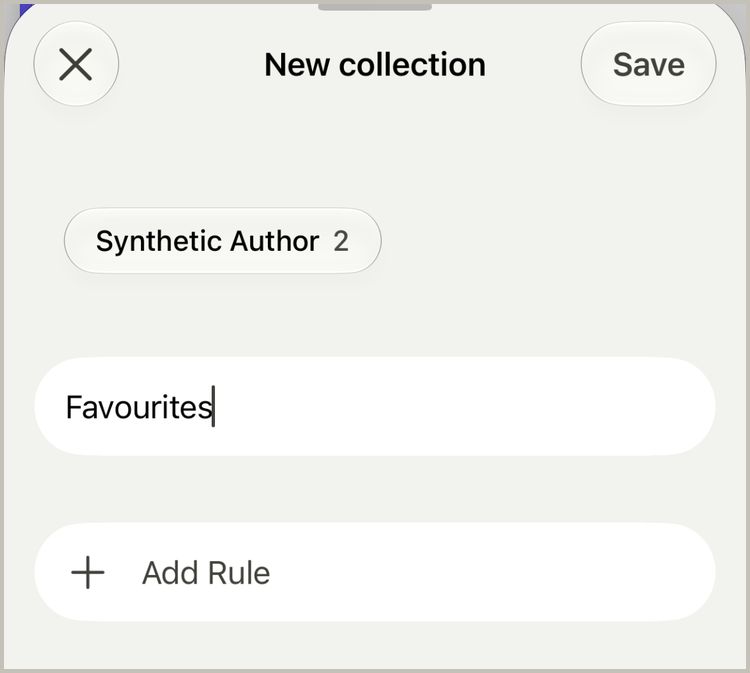
In the Library, tap New Collection.
Give it a name.
For a smart collection, tap Add Rule and set up your rules. For a regular one, skip this.
Tap Save.
To fill a regular collection, open it and tap ••• and then Add Books, or touch and hold a cover and tap Add to Collection.
What smart collections can't do
You can't add or remove books by hand in a smart collection. Its rules decide what's in it, so if a book shows up that you don't want, change the rules instead.
You choose the kind when you create it. A regular collection can't get rules later, and a smart one always keeps at least one rule. To switch, make a new collection.
Rules can look at genre or tag, author, source, whether it's an EPUB, when you added the book, or how long it's been since you last opened it. You can use up to eight, and choose whether a book has to match all of them or any one.
Taking a book out of a collection, or deleting a whole collection, never removes the book from your Library.
Import your own EPUBs
You don't need any sources to read your own EPUB books.
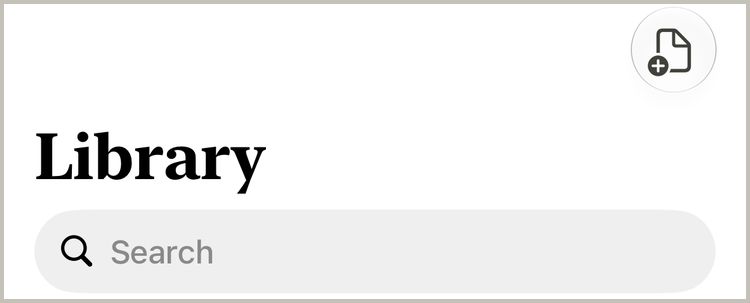
In the Library, tap the import button at the top.
Pick an EPUB from Files.
Tip Books with DRM and picture books can't be opened, unfortunately.
Remove a book
Touch and hold the book's cover, then tap Remove from Library. If you did that by accident, tap Undo straight away.
Read a book
Bring up the controls
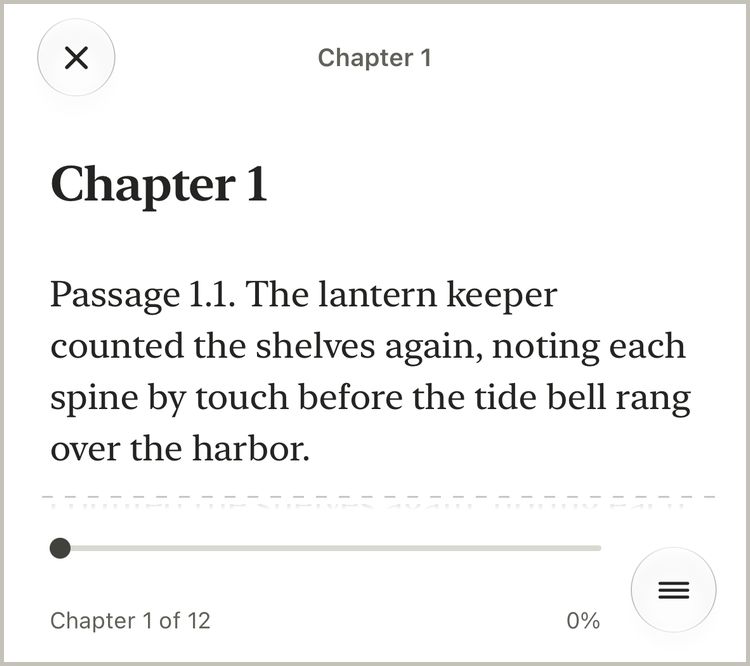
Tap the middle of the page and the controls appear. Drag the bar at the bottom to move through the chapter, or tap the round menu button for more options. When you're done, tap ✕. Your place is saved automatically.
Move between chapters
The easiest way is to just keep scrolling: the next chapter follows on from the end of this one. You can also tap the next chapter's title at the end, or open the round menu, tap Contents and pick any chapter you like.
Make it comfortable
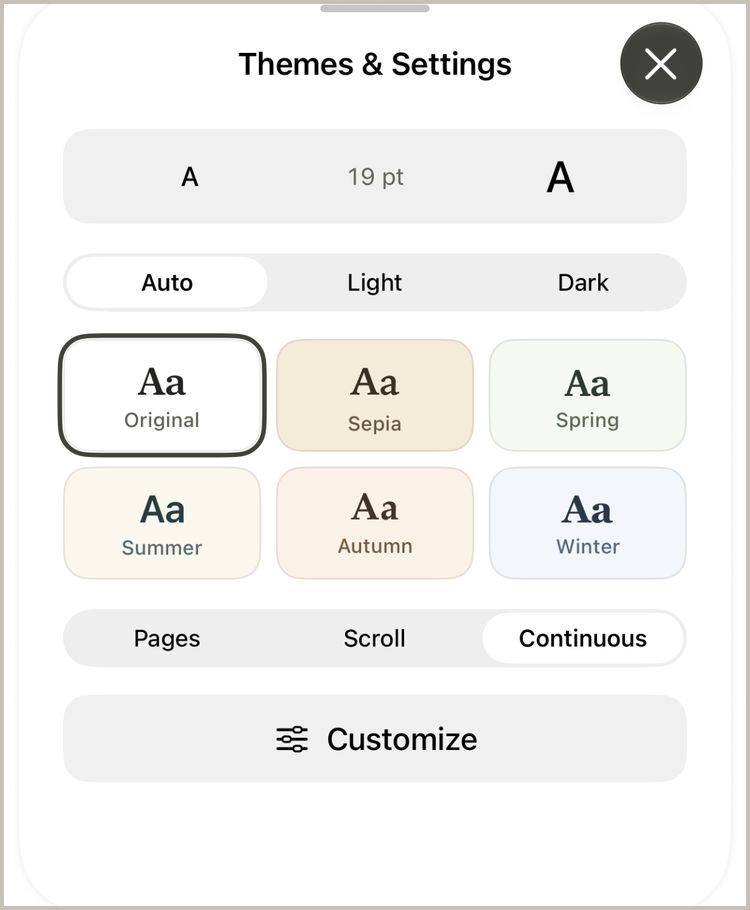
Open the round menu and tap Themes & Settings.
Use the A buttons to make the text bigger or smaller.
Pick a theme, like Sepia or Dark.
Tip You can also choose how the book moves: Pages, Scroll or Continuous.
Let it scroll for you
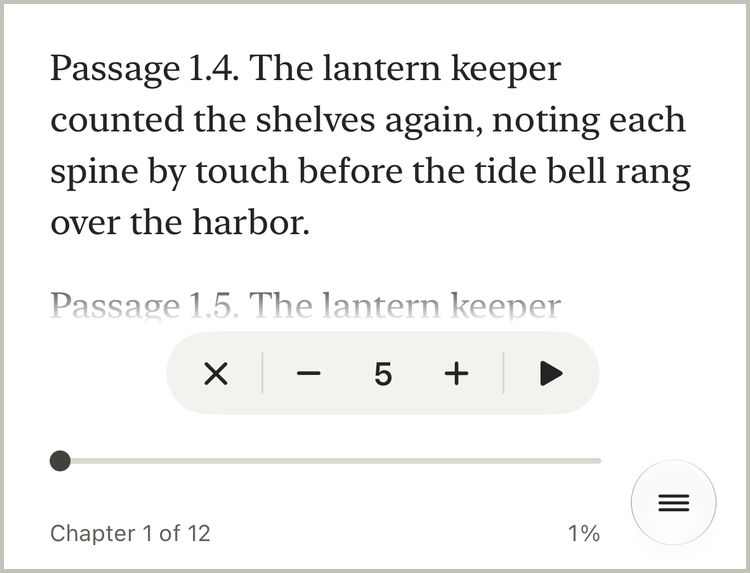
Auto-scroll is great when you want to read without touching the screen.
Open the round menu and tap Auto-Scroll.
Tap the text whenever you want to pause.
While it's paused, use − and + to change the speed.
Tap the text again to keep going.
Tip Prefer to move one screen at a time? Choose Screen by screen in Customize.
Bookmarks
Found a page you want to come back to? Open the round menu and tap Bookmark. You'll find it later in Contents, under Bookmarks.
Downloads and new chapters
Read offline
Download chapters ahead of time so you can read without a connection.
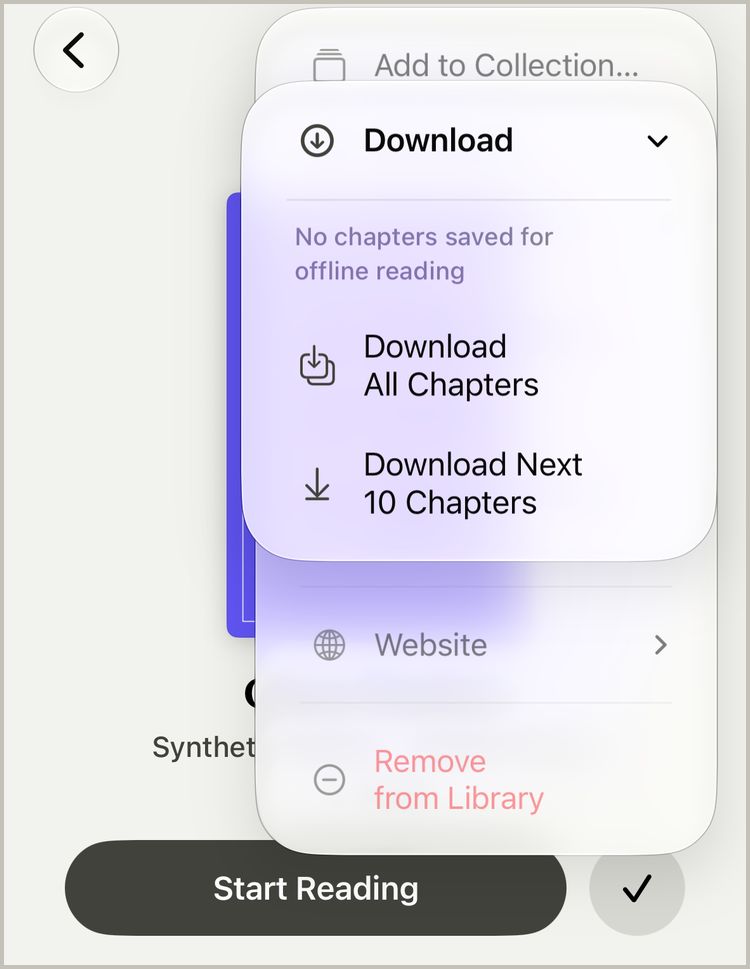
Open the book's page.
Tap ••• and then Download.
Choose All Chapters, or just the Next 10.
Tip To save your mobile data, downloads only happen on Wi-Fi. You can change that in Settings, under Downloads.
Stay up to date
Pull down on the Library to check your books for new chapters. Any book with something new gets a badge on its cover.
Tip Want a heads-up instead? Turn on Notify about new chapters in Settings.
Free up space
If downloads are taking up too much room, turn on Delete chapters after reading in Settings, under Downloads. Chapters you've finished are then cleared away for you.
Sync and backups
Sync with iCloud
As long as you're signed in to iCloud on each device, your books, reading places, bookmarks, collections and appearance settings sync on their own. There's nothing to turn on. If you want to sync right now, open Settings and tap Sync Now.
Tip Downloaded chapters and EPUB files stay on the device they're on, so you may need to download or import them again on a new device.
Back up your library
Open Settings.
Tap Back Up Library and save the file somewhere safe.
If you ever need it back, tap Restore from Backup and choose that file.
Keep your reading list up to date
If you track what you read on a reading-list site, the app can update it for you as you go.
Open Settings, tap Tracking and sign in.
On a book's page, tap ••• and then Tracking to link the book.
From then on, your progress updates as you read.
Settings
Reading appearance
This is where you make the page look the way you like. Open Settings and tap Reading appearance, or open the round menu while reading and tap Themes & Settings. Changes show straight away.
Text size: tap the smaller or bigger A. It goes from very small to very large, separate from your iPhone's own text size.
Auto, Light or Dark: Auto follows your iPhone. Light and Dark keep the page one way.
Themes: Original, Sepia, Spring, Summer, Autumn and Winter. Each one has its own colours and font. Picking one never changes your spacing or margins.
Layout: Pages turns the page like a book, Scroll moves one chapter at a time, and Continuous runs the chapters together.
Customize: change the font and its weight, the spacing between lines, letters, words and paragraphs, indents, justified text, hyphenation, the margins and how wide the lines are.
Warmth: adds a soft amber tint to the page for reading at night.
Chapter animation: Slide, Fade or Off when you move to the next chapter.
Show progress: shows how far you are, like Page 3 of 12, at the bottom while you read.
Tip Changing the font only changes it for the theme you're on. Spacing and margins stay the same in every theme. Tap Reset Font and Spacing at the bottom of Customize to start over.
Keep the screen on
Turn on Keep screen awake while reading, under Reading, and your iPhone won't dim or lock while a book is open. It goes back to normal as soon as you close the book.
Haptic feedback
Haptic feedback is the light tap you feel when you save a book, change chapters or adjust a setting. Turn it off under General if you'd rather not feel it. Your iPhone's own System Haptics setting can also turn it off.
New chapter alerts
Notify about new chapters: your iPhone tells you when a book you follow has new chapters. The first time you turn it on, iOS asks for permission.
Books I'm reading: alerts for the books you've started. Books you haven't started stay quiet.
Download new chapters for new books: books you add from now on download their new chapters by themselves.
Books are checked when you open the app and, when iOS allows, while it's closed. Each book's ••• menu can turn alerts and downloads on or off just for that book.
Downloads and read ahead
Downloads: shows what's downloading and what's saved, and lets you remove downloads.
Download over Wi-Fi only: on at first, so downloads don't use your mobile data.
Read ahead: quietly downloads the next 3 or 10 chapters while you read, so the next one is ready even if you lose signal.
Delete chapters after reading: clears a chapter's download once you move on to the next one. Chapters you leave halfway or bookmark are kept.
Tip A chapter you open always downloads, whatever these settings say.
iCloud
The iCloud section shows whether your library is syncing and when it last did. Tap Sync Now to sync straight away. If you switch to a different Apple Account, it asks whether to sync this library with the new one.
Backup
Back Up Library saves your books, reading places, collections and preferences as one file, without the chapter text. Restore from Backup brings them back from that file. Restoring only adds things, so nothing already in your Library is removed.
Tracking
Sign in to AniList, MyAnimeList, MangaUpdates or Kitsu under Tracking. With Update progress as I read turned on, finishing a chapter of a linked book moves your count forward on each service, and the last chapter marks it completed.
Get help
A chapter looks wrong or empty
Most problems happen because a website changed something. Open the chapter, then open the round menu and tap Reload Chapter. This fetches a fresh copy from the website.
A source stopped working
In the Sources tab, tap Check for Updates. A fix may already be waiting.
If you see an Open Website button, tap it and finish the website's check, then try again.
Still no luck? Try finding the same book in another source.
Get in touch
Stuck, or have an idea? Open Settings and tap Send Feedback. We'd love to hear from you.